Overview
This guide explains how to book a ride through the LUXY Travel Agent Portal. You’ll learn how to enter trip details, choose between a Point-to-Point or Hourly ride, select a vehicle and passenger, add optional trip information and extras, enter payment information, and confirm the reservation.
Steps
- Log into the LUXY Travel Agent Portal.
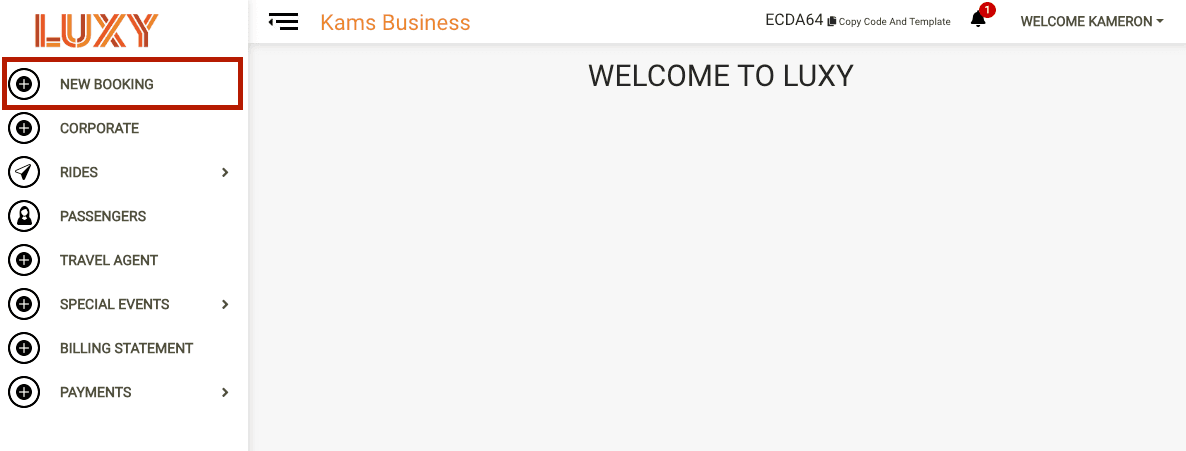
- To start a new booking, navigate to the dashboard, then click New Booking.
- Link a corporate account, if applicable (optional).
- Enable Link to Corporate Account.
- Search for and select the appropriate corporate account.
If you need to link your travel agent account with your corporate account, see Linking Travel Agencies and Corporate Accounts.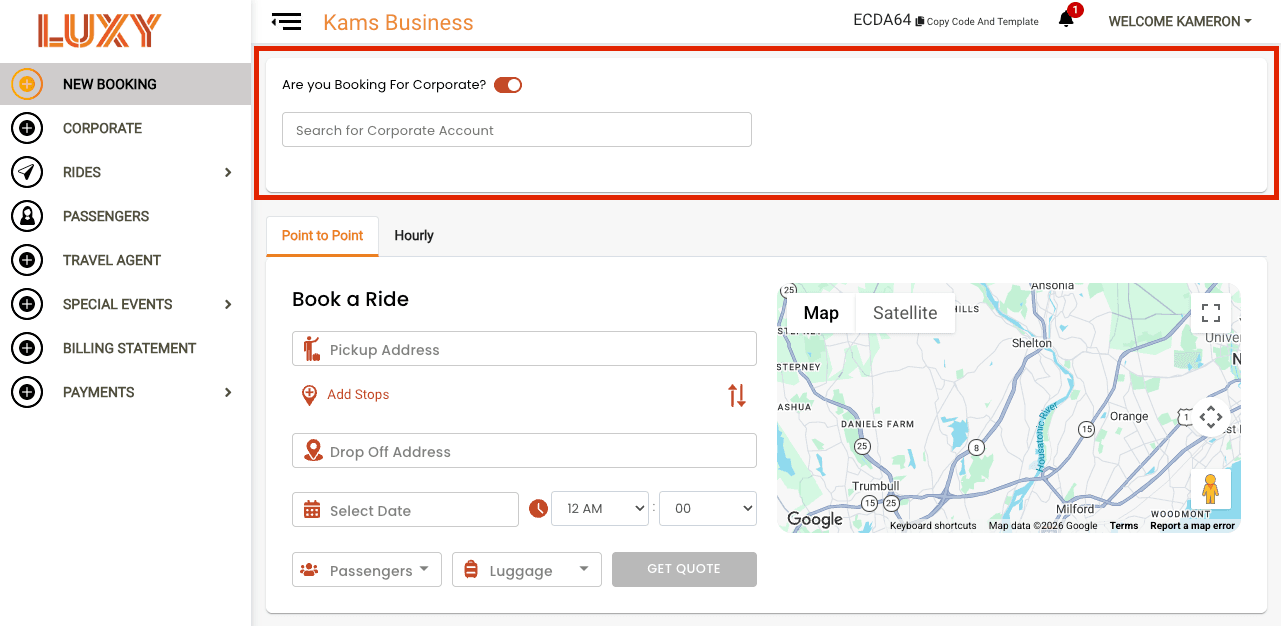
Enter the trip details by following the steps below for the ride type you’re booking: A single trip from one pickup location to one drop-off location, booked in advance with a set fare. Up to 4 additional stops can be added. or Ground transportation booked for a block of time rather than a single point-to-point trip, with the vehicle and chauffeur available for the duration booked. All travel must remain within a 15-mile radius of the pickup location..
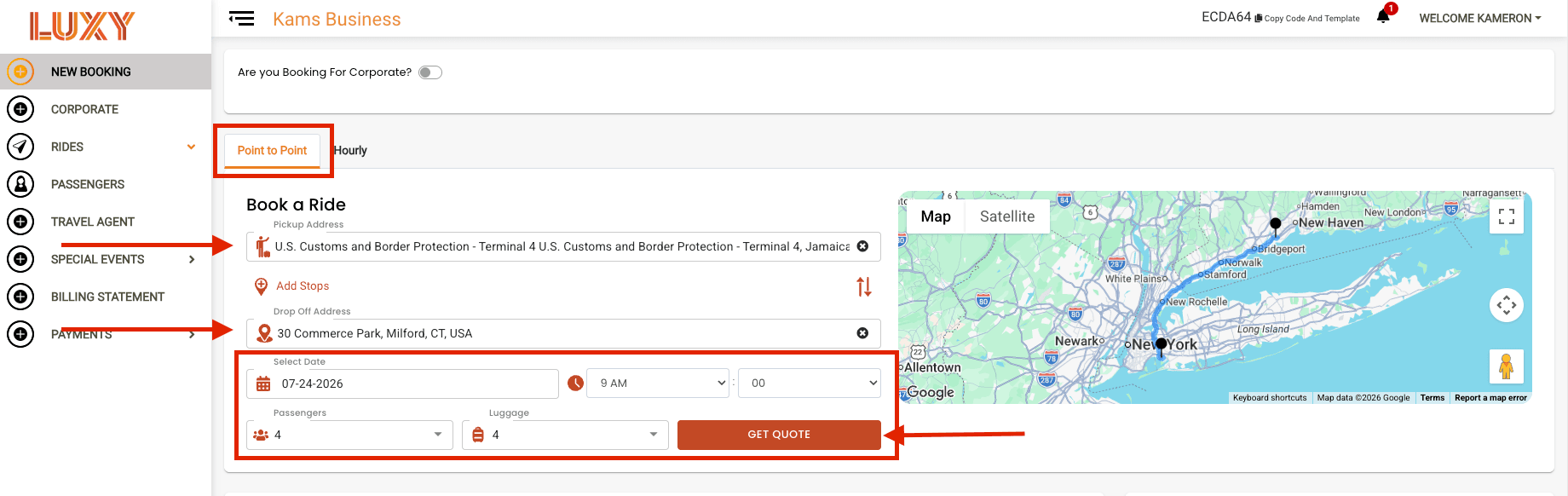
Point-to-Point Ride
- Enter the pickup address.
- Enter the drop-off address. Optional: click + Add Stop to include up to four additional stops.
- Enter the pickup date.
- Enter the pickup time. For airport pickups, enter the flight’s scheduled arrival time. LUXY will track the flight and automatically adjust the pickup time if needed.
- Enter the number of passengers.
- Enter the number of luggage.
- Click Get Quote to view available vehicle options.
Hourly Ride
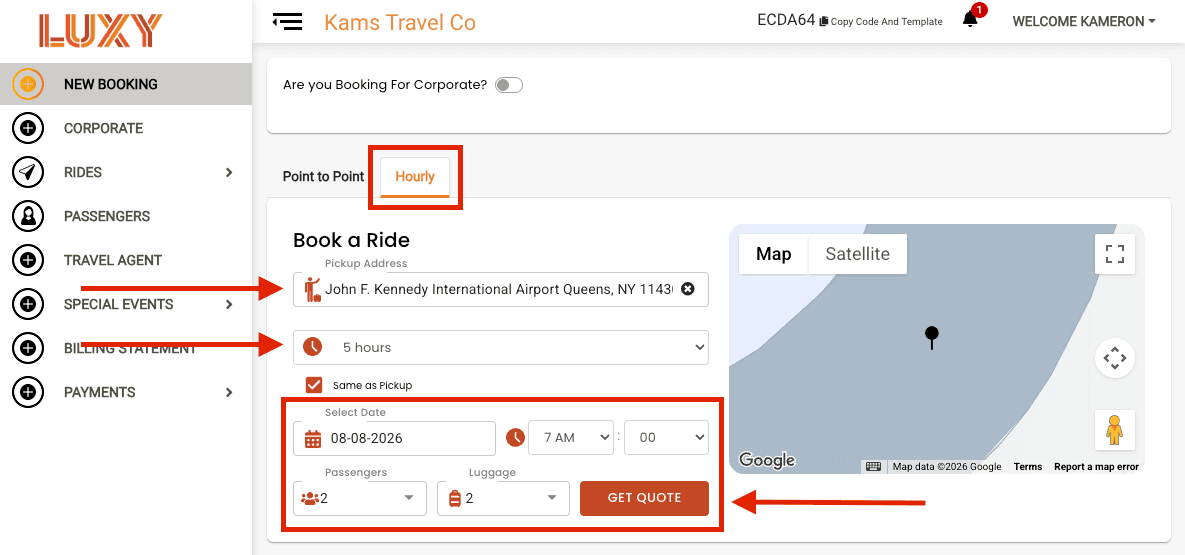
- At the top of the booking form, change the ride type from Point-to-Point to Hourly.
- Enter the pickup address. Optional: uncheck Same as Pickup to enter a different drop-off address.
- Enter the number of hours.
- Enter the pickup date.
- Enter the pickup time. For airport pickups, enter the flight’s scheduled arrival time. LUXY will track the flight and automatically adjust the pickup time if needed.
- Enter the number of passengers.
- Enter the number of luggage.
- Click Get Quote to view available vehicle options.
Select a vehicle. Review the available vehicle and luggage options and select the option that best fits your trip. We recommend selecting the suggested vehicle or upgrading, since the suggestion is based on your passenger and luggage count. For more information, see the Vehicle and Luggage guide.
 If you need transportation for 6 or more passengers, submit a custom quote request instead.
Search for the passenger by their first name, then select the passenger from the search results. Their saved information will automatically populate. If the passenger does not have a profile, follow the Add a Passenger process before starting the booking.
Optional: add a A traveler or contact added to a booking to receive ride notifications alongside the primary passenger. if another traveler or contact should receive ride Alerts sent to passengers by email, text (SMS), or app push notification, based on settings, covering booking confirmation, trip reminders, driver status, and cancellations..
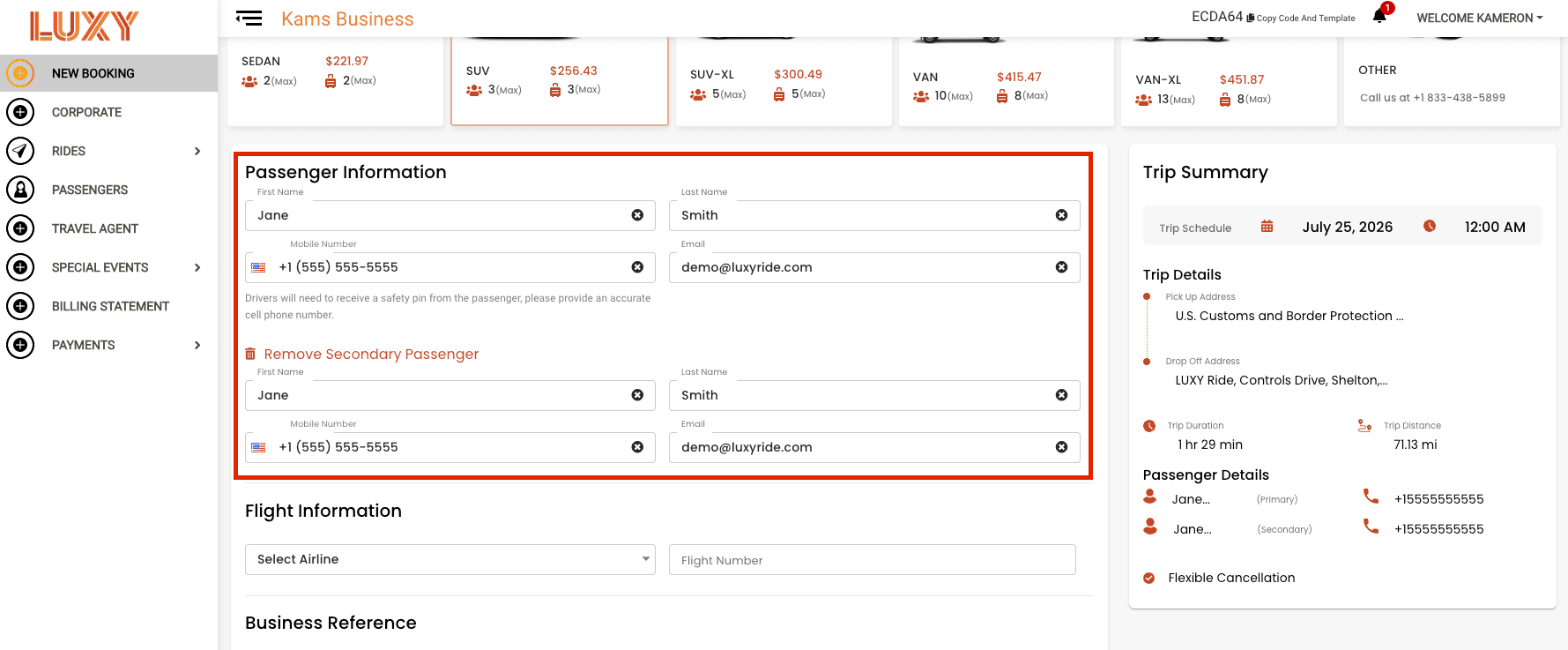
Add flight information if this is an airport pickup. Enter the passenger's airline and flight number.
 LUXY tracks flight arrivals and adjusts the pickup time based on actual landing time. Departures are not tracked. For more information, see the Airport Pickup & Flight Tracking Guide
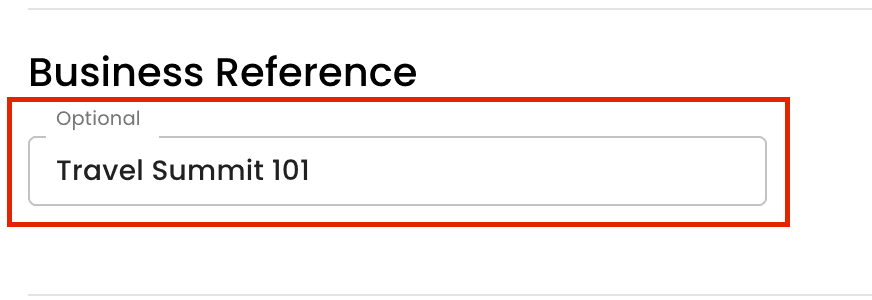
Add a A reference entered at booking that appears on billing statements, making it easier to identify and reconcile the trip for accounting or reporting purposes., if applicable. This reference will appear on A downloadable document that lists rides within a selected date range as line items, along with their associated transaction details., making it easier to identify and reconcile the trip for accounting or reporting purposes.
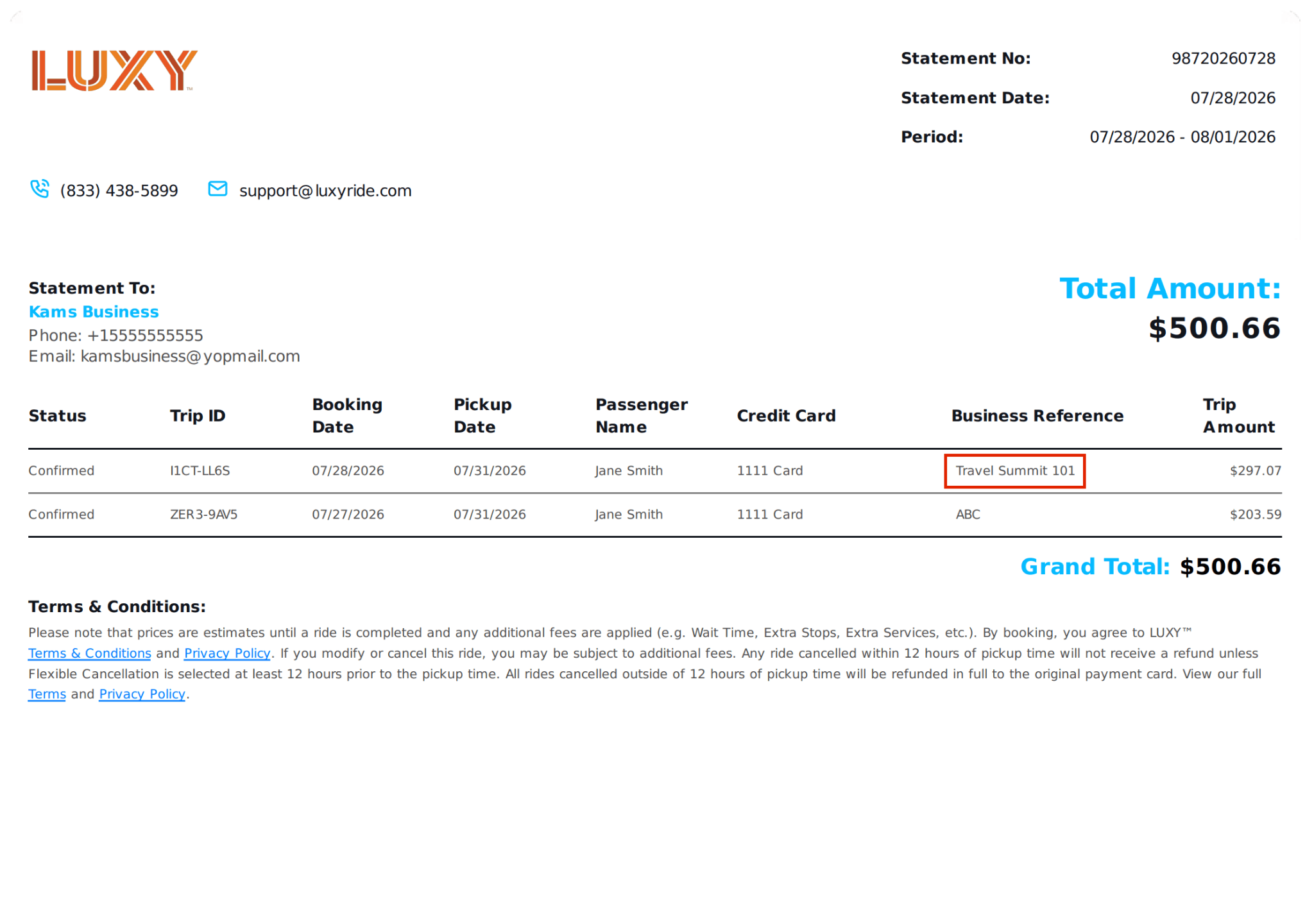
Sample billing statement Add An optional field entered while booking a ride, for adding information specific to that single booking (e.g., traveling with golf clubs), separate from the passenger's saved Profile Notes. (optional). Enter any trip-specific details the chauffeur should know, such as special pickup instructions or oversized luggage like golf clubs or skis.
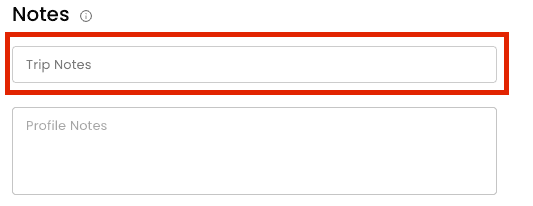 Trip Notes apply only to the current reservation and are not saved to the passenger's profile. Trip Notes are visible to LUXY and its partners. To add An optional field on a passenger's profile for saving preferences or helpful information (e.g., prefers a quiet ride) for use in future bookings. Visible to LUXY and its partners. to a passenger's profile, see Edit Passenger Details.
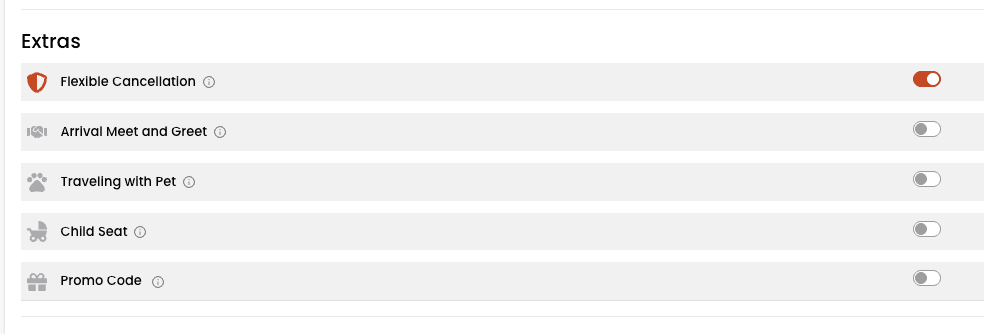
- Add Optional add-ons available at booking, including Meet & Greet, Flexible Cancellation, pet accommodation, and child seats. (optional). Toggle Extras to On (the switch turns orange) to add optional ride extras to the reservation. A Trip Extra that allows an eligible booking to be canceled for a refund of the ride fare, subject to a non-refundable fee. will automatically be toggled on. See the Trip Extras guide to learn more about the available options and pricing.
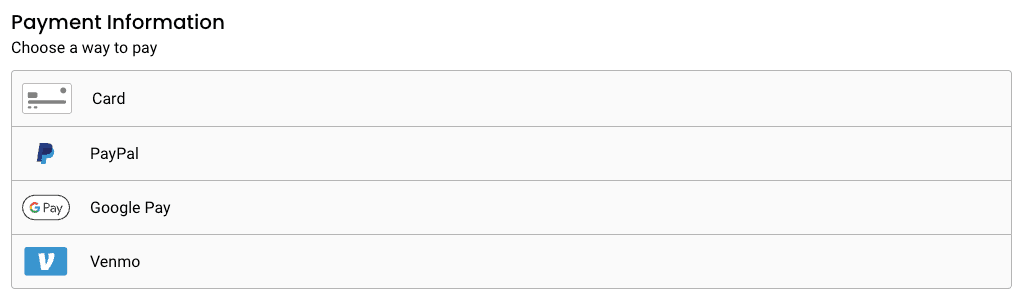
- Enter payment information. Select a payment method to secure the booking. LUXY accepts credit/debit card, PayPal, Google Pay, and Venmo.
Save the payment method (optional). Select Save This Card to save a credit card to the passenger profile for future bookings.
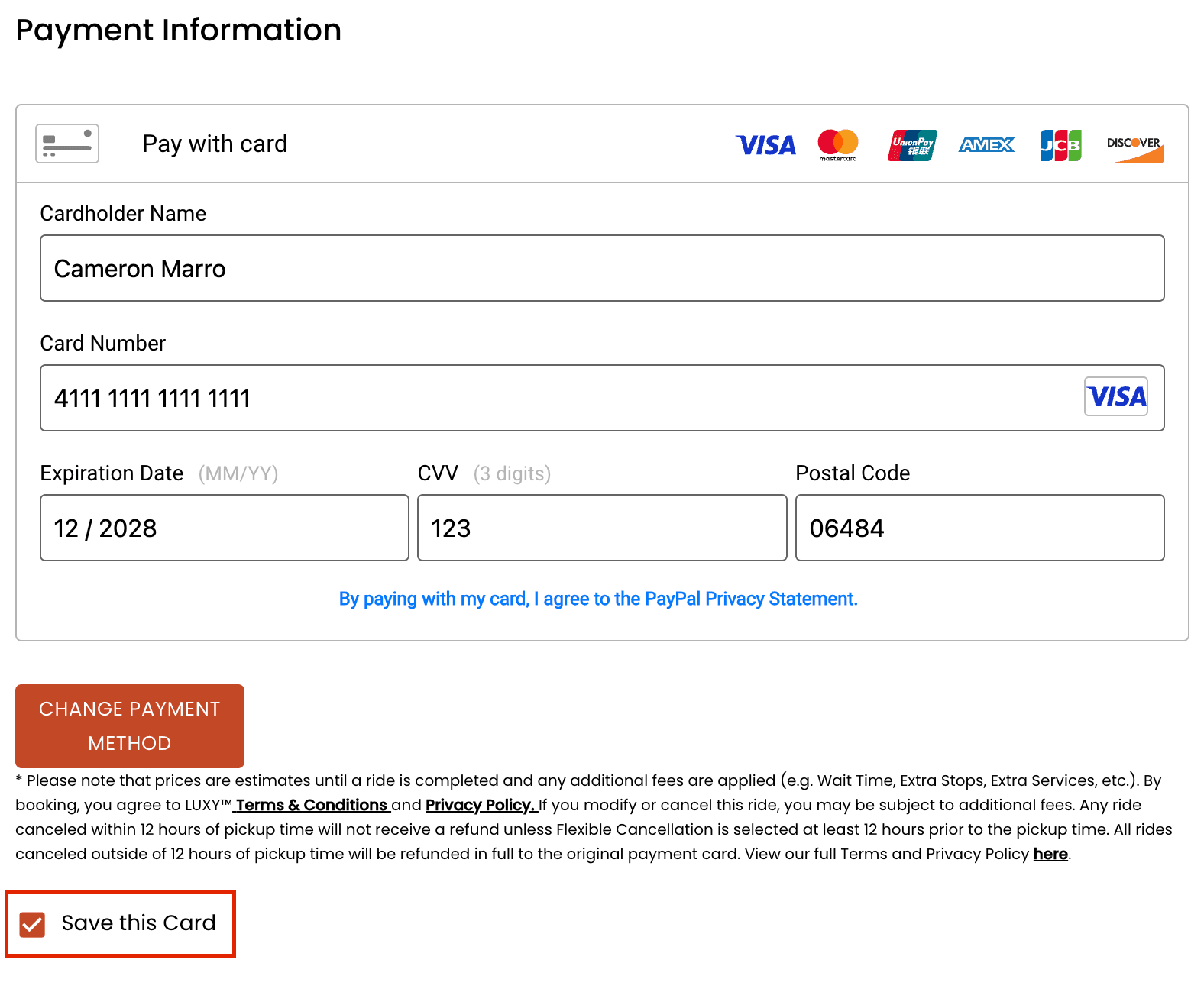 If you do not save the card, you will need to re-enter the card information whenever the booking is edited.
- Review the booking. Scroll to the top of the page and review the trip details.
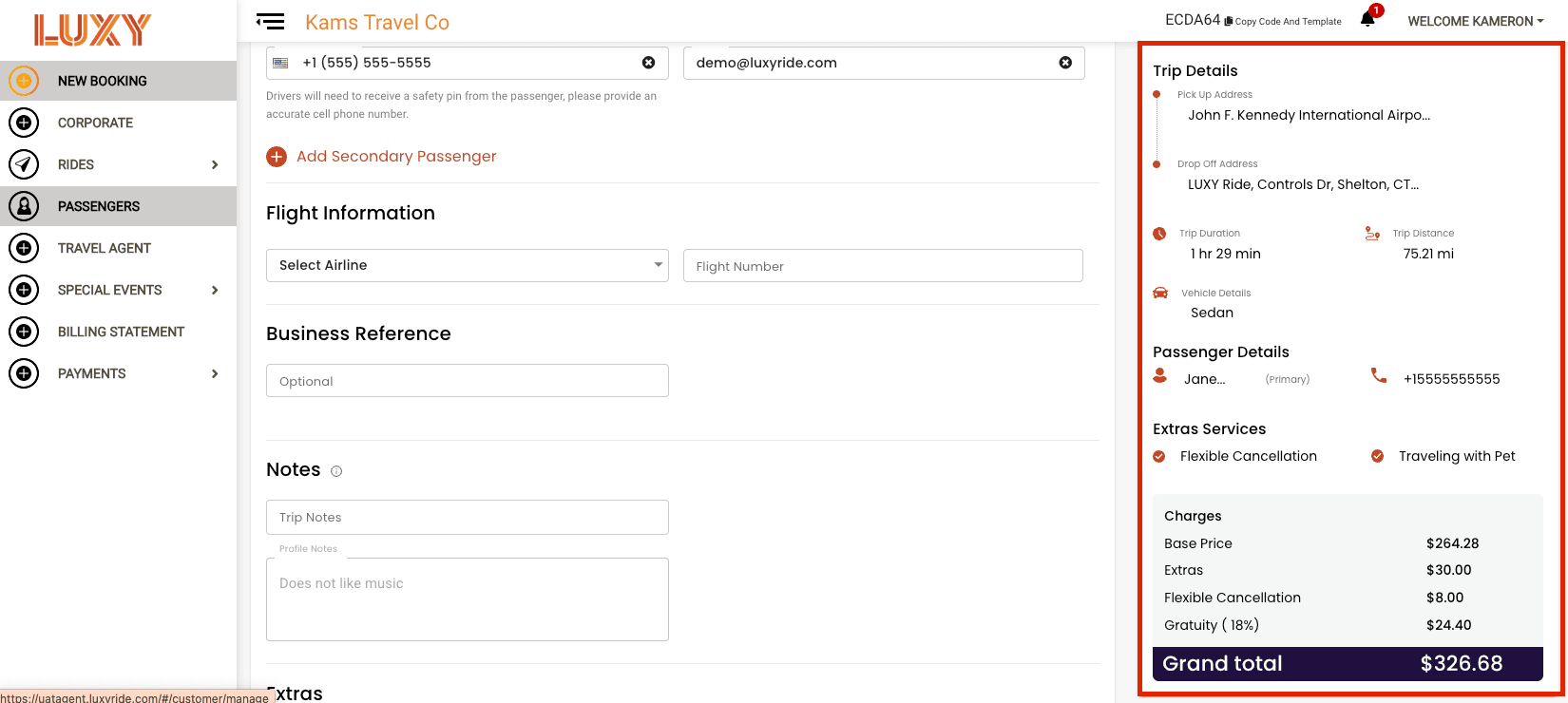
Confirm the booking. Click Confirm Booking to finalize the reservation.
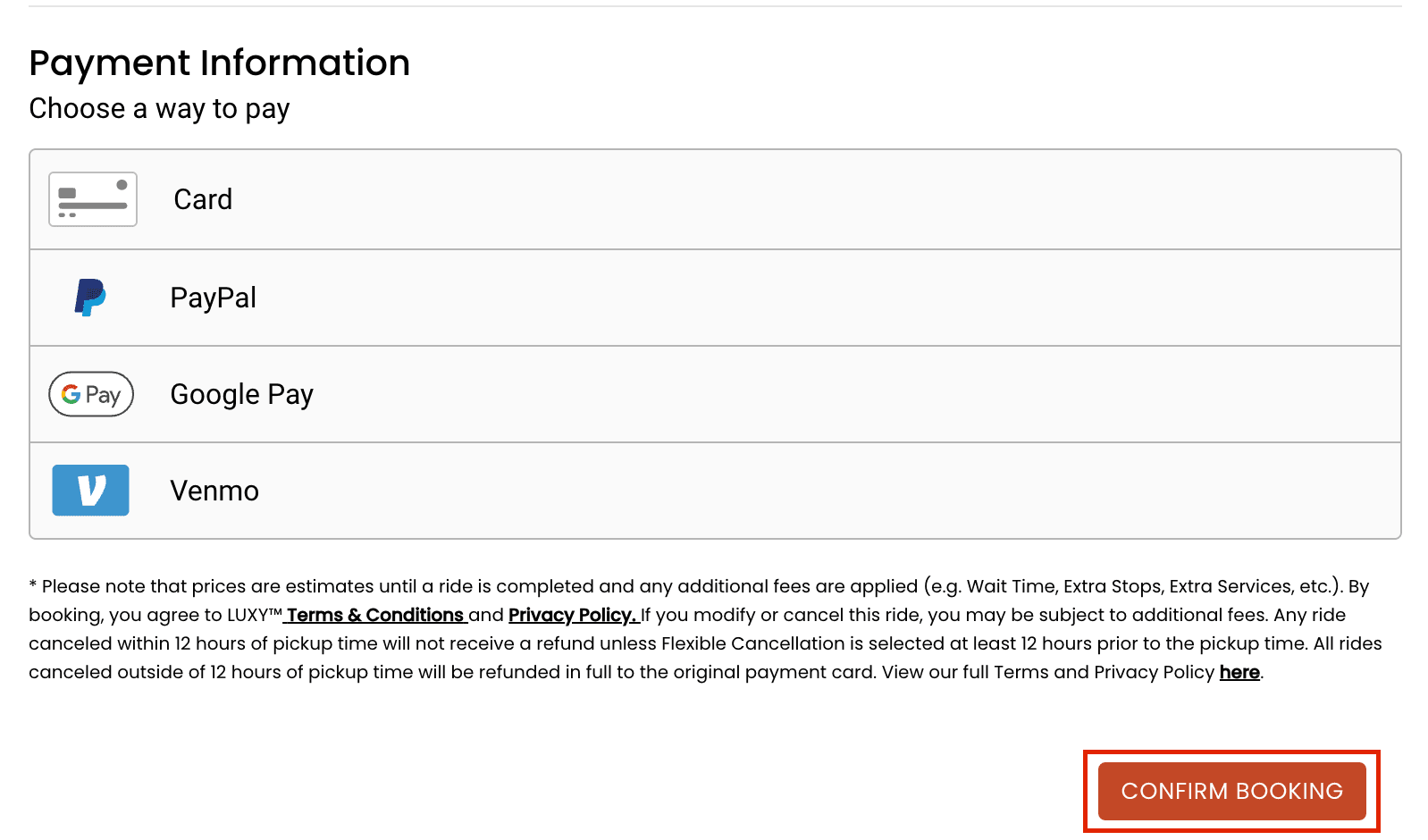 Payment is processed as soon as the booking is confirmed.
- To track the upcoming ride, see Navigate the Rides Dashboard.